 Neat Devices
 Crestron
The room, the floor, and where they stand
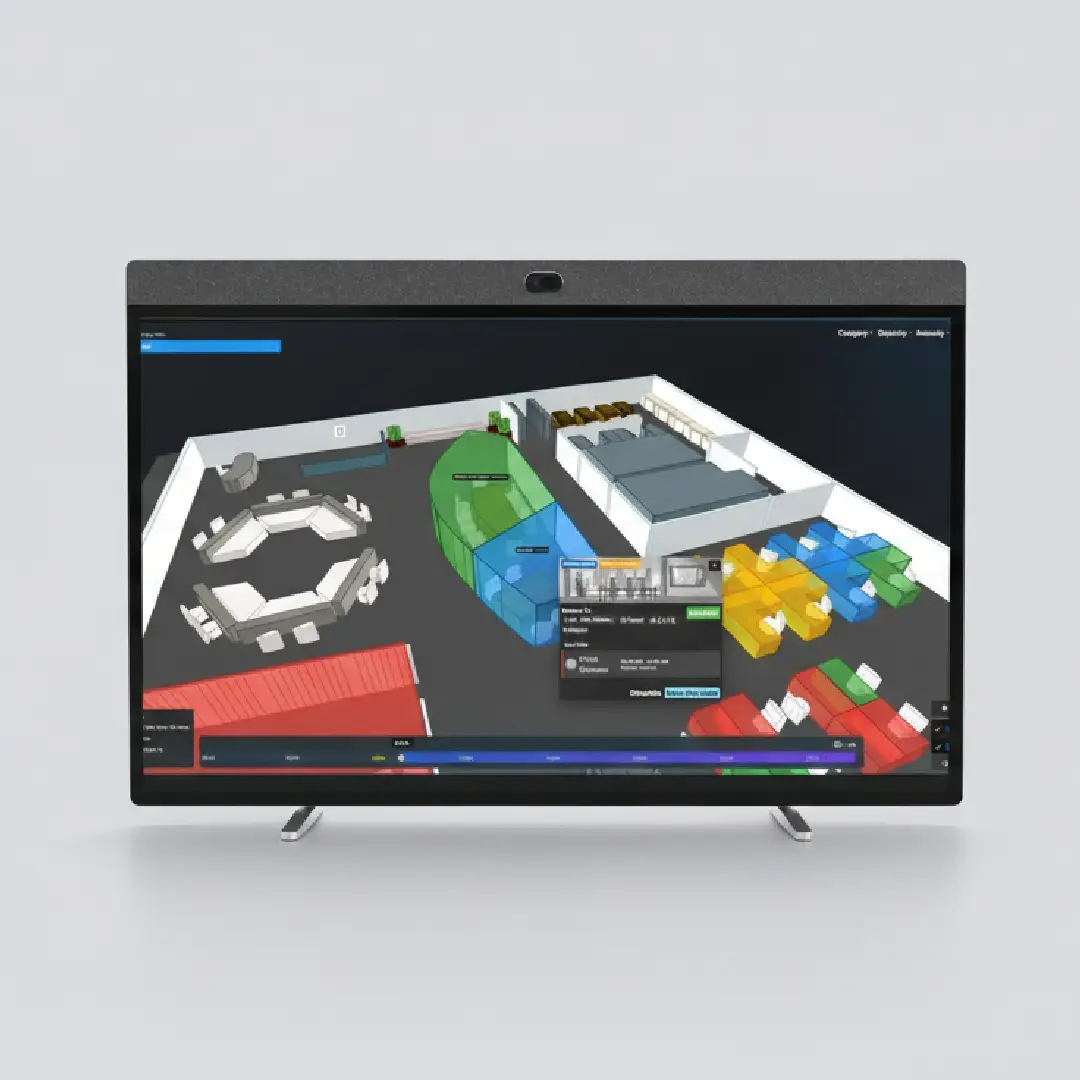
Check-in shows the room, its floor, and a plan with the room lit up. Place the kiosk on the plan and the guest also sees You are here.
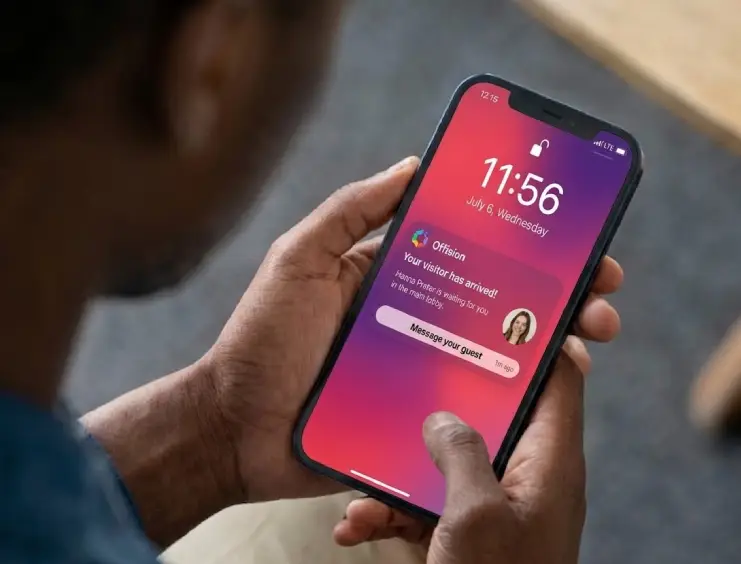
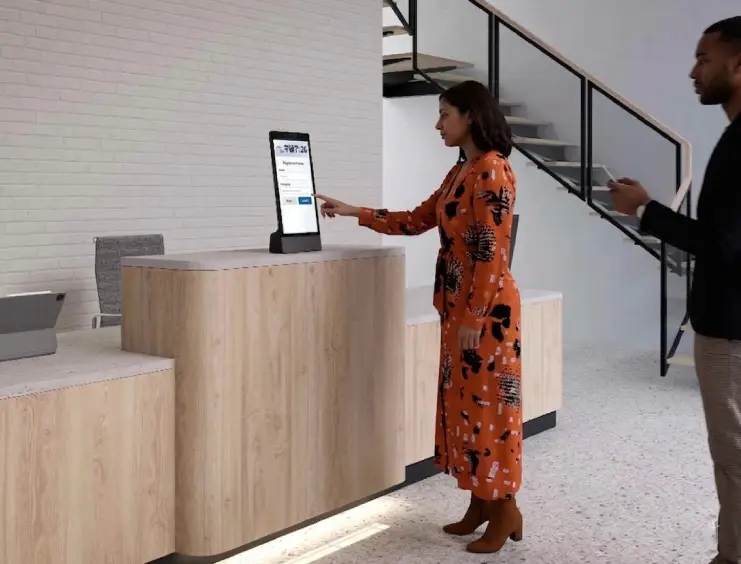
A guest walks up, registers or checks in, and sees the room they are going to. The host is told at the same moment.
At the lobby
Guest checks in
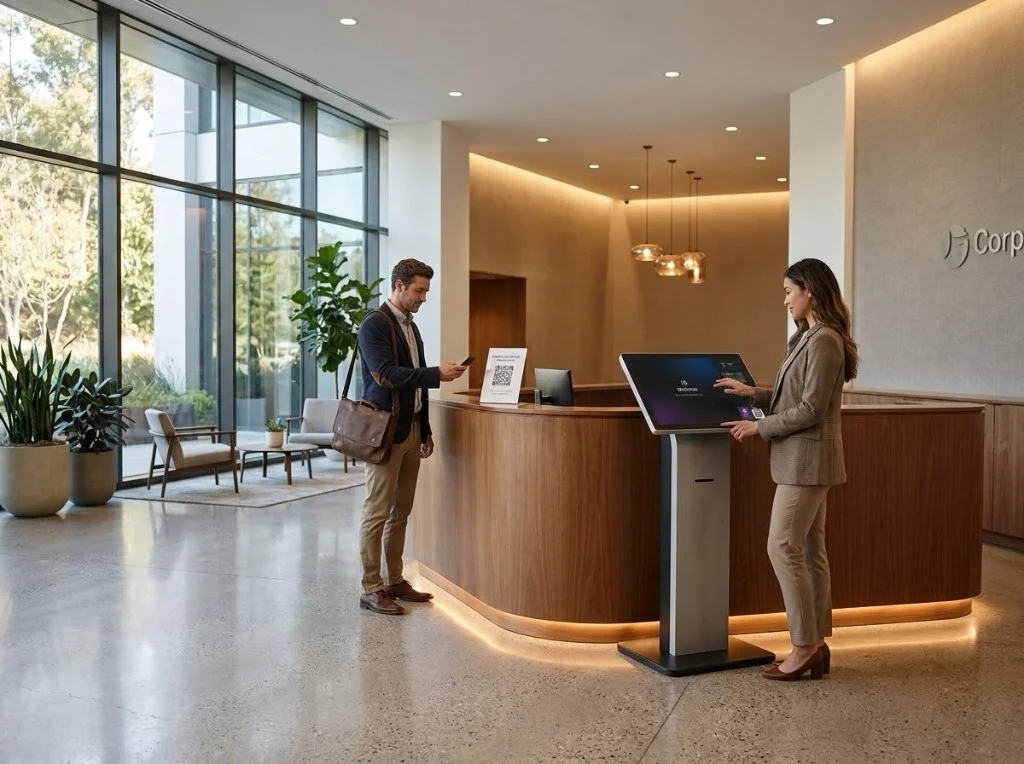
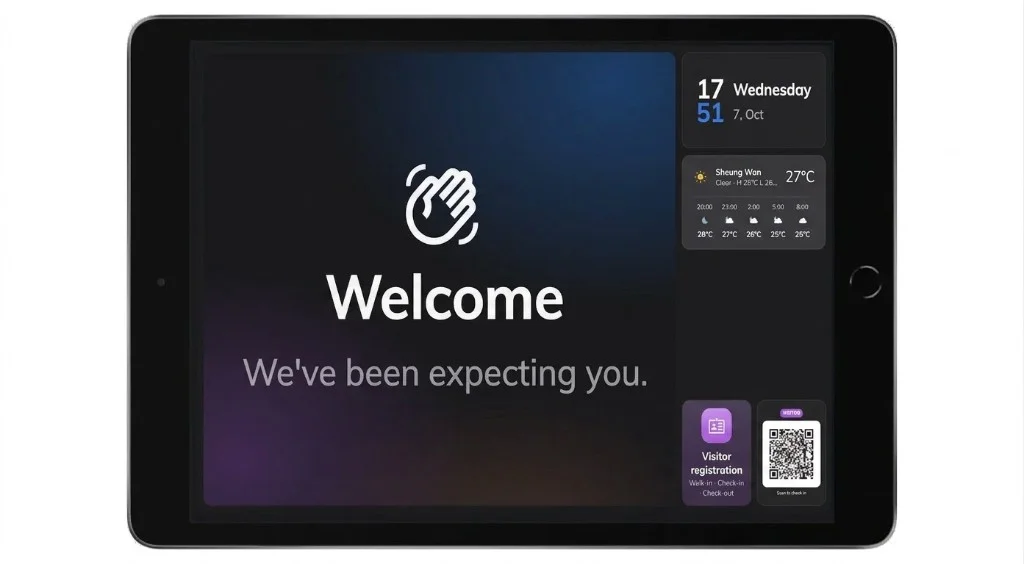
A self-service kiosk is a lobby screen people walk up to, to register as a visitor, check in for an appointment, or tap a card. Offision runs it as signage: a screen that plays a board. With Touch screen on, the board shows buttons the guest can press. With touch off, those buttons become a QR code, and the guest finishes registration on their own phone.
On a portrait Neat Frame (9:16), Offision stacks widgets at the top, a welcome message in the middle, and visitor actions at the bottom. Touchscreens show tappable rows; non-touch displays swap the same actions for a QR code.
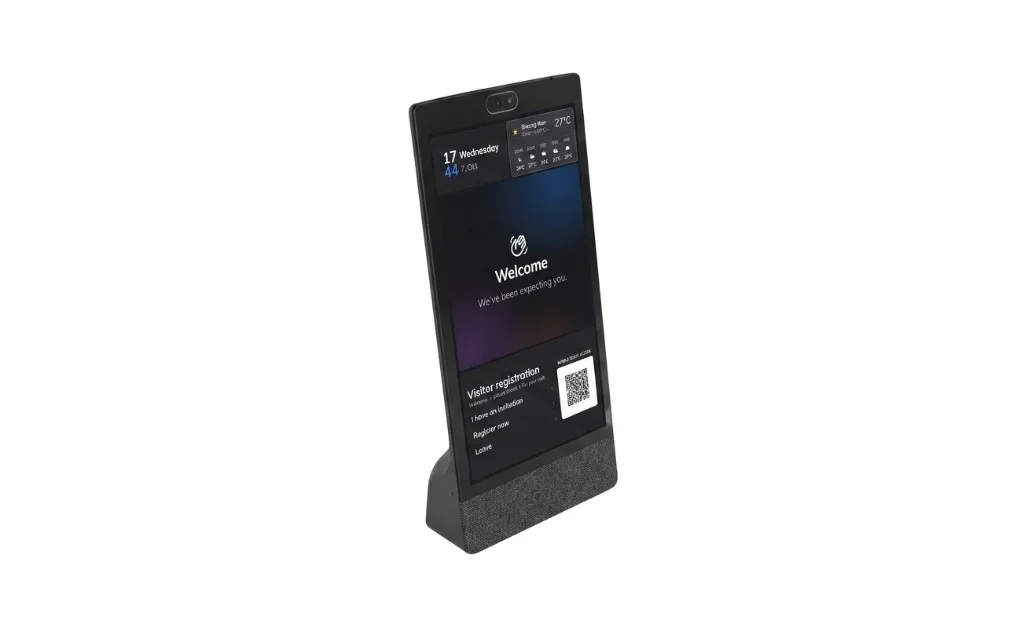
Optional header widgets show the clock and local conditions so the lobby screen feels live before anyone taps.
A branded banner greets arrivals. Copy and artwork come from your signage board in Admin.
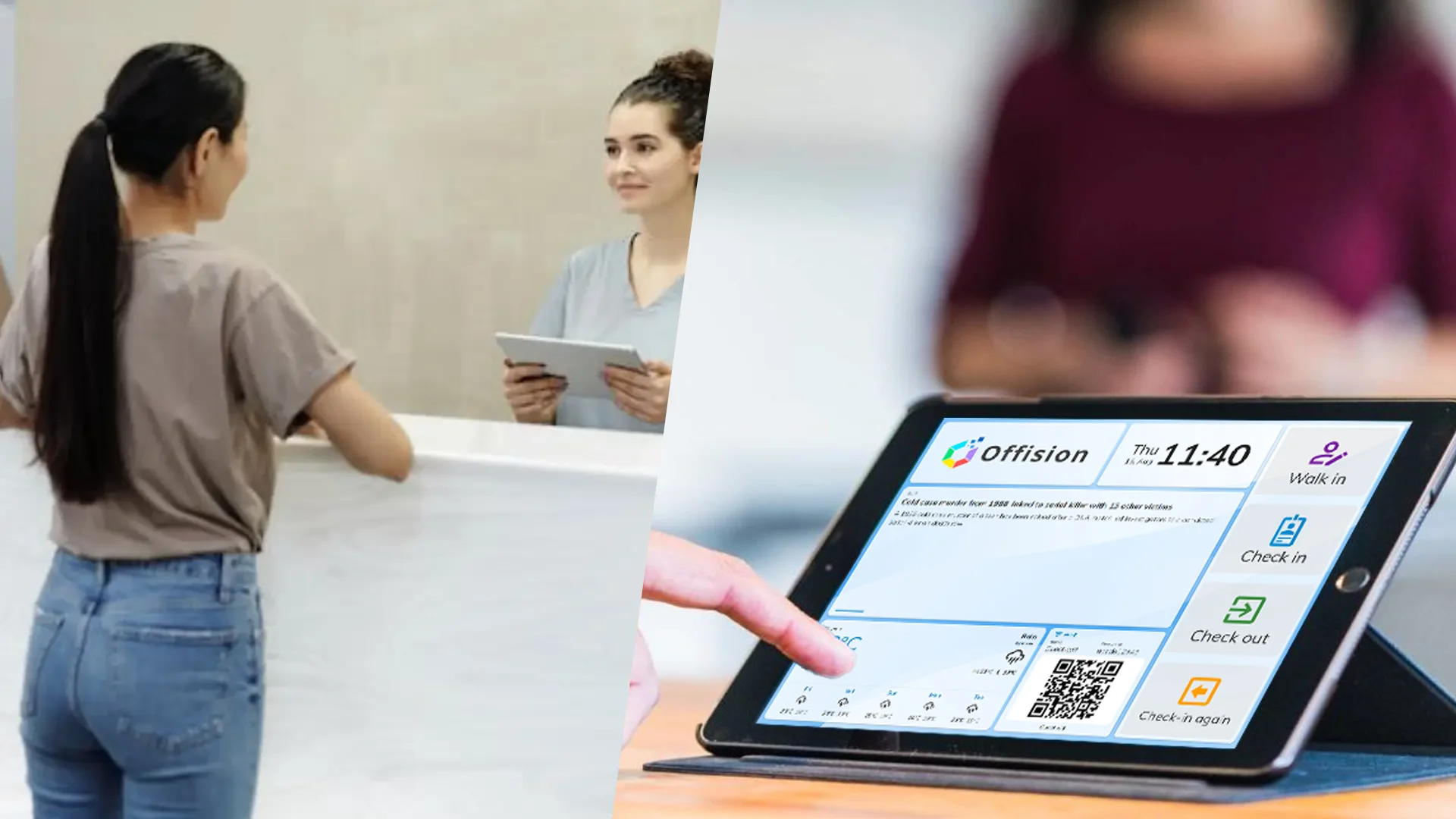
Invited guests check in, walk-ins register, and anyone can leave. When touch is off, the same flows move to the guest phone via QR.
Check-in shows the room, its floor, and a plan with the room lit up. Place the kiosk on the plan and the guest also sees You are here.
A touchscreen shows self-service buttons. Without touch, the guest scans a QR code to register.
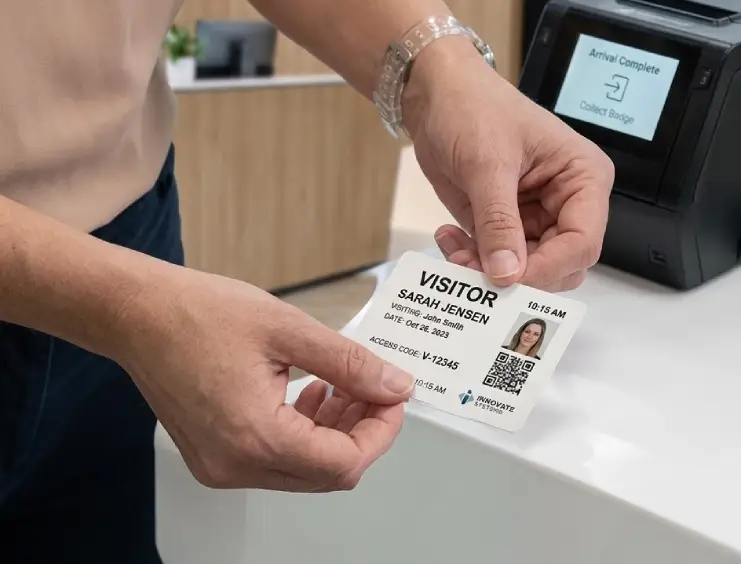
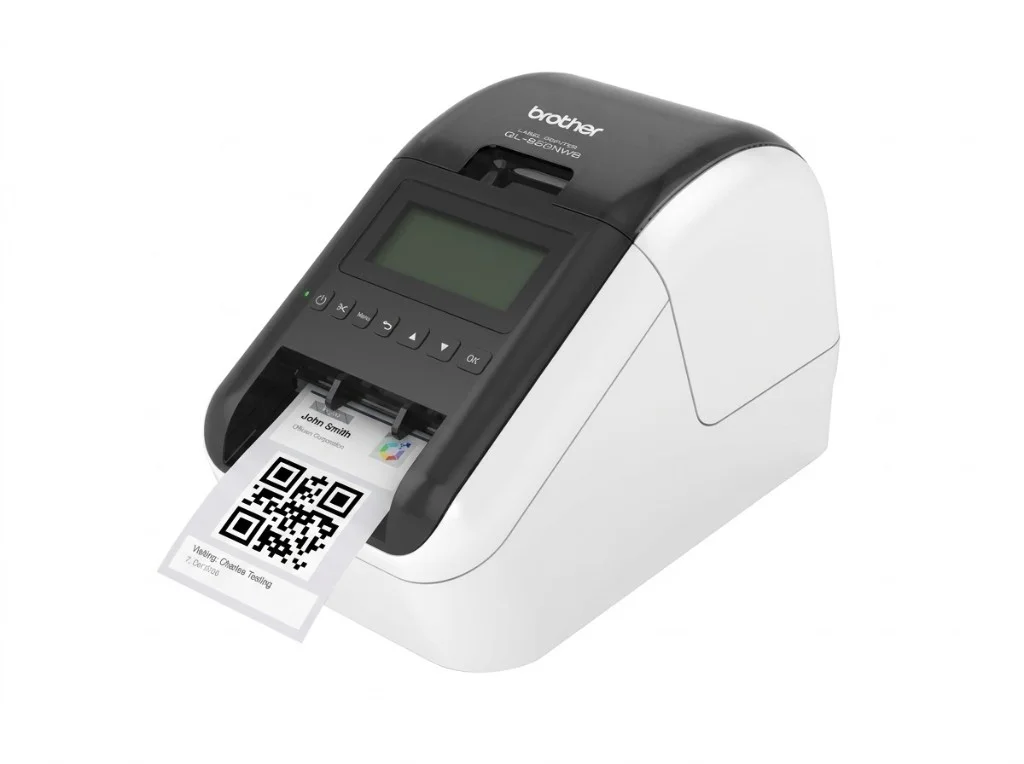
Walk-ins answer the same questions as the desk. A printer at the screen can print the badge.
Set the screen to landscape and turn Touch screen on. Place it on the building's floor plan. A kiosk with no location greets nobody. Visiting types and a location policy for that building have to exist first. The kiosk offers what they already produce.
A screen behind the desk usually lists who has already checked in. A screen at the door usually lists who is expected. Greet can welcome every arrival in the building, or only the people who checked in at this screen.
An invited guest taps check-in. A walk-in uses a self-service button or scans the QR code. Wherever they are admitted, the host is told. This lobby screen is also the place that shows the guest the room they are walking to.
SELF_SERVICE_KIOSK.HARDWARE_DESC
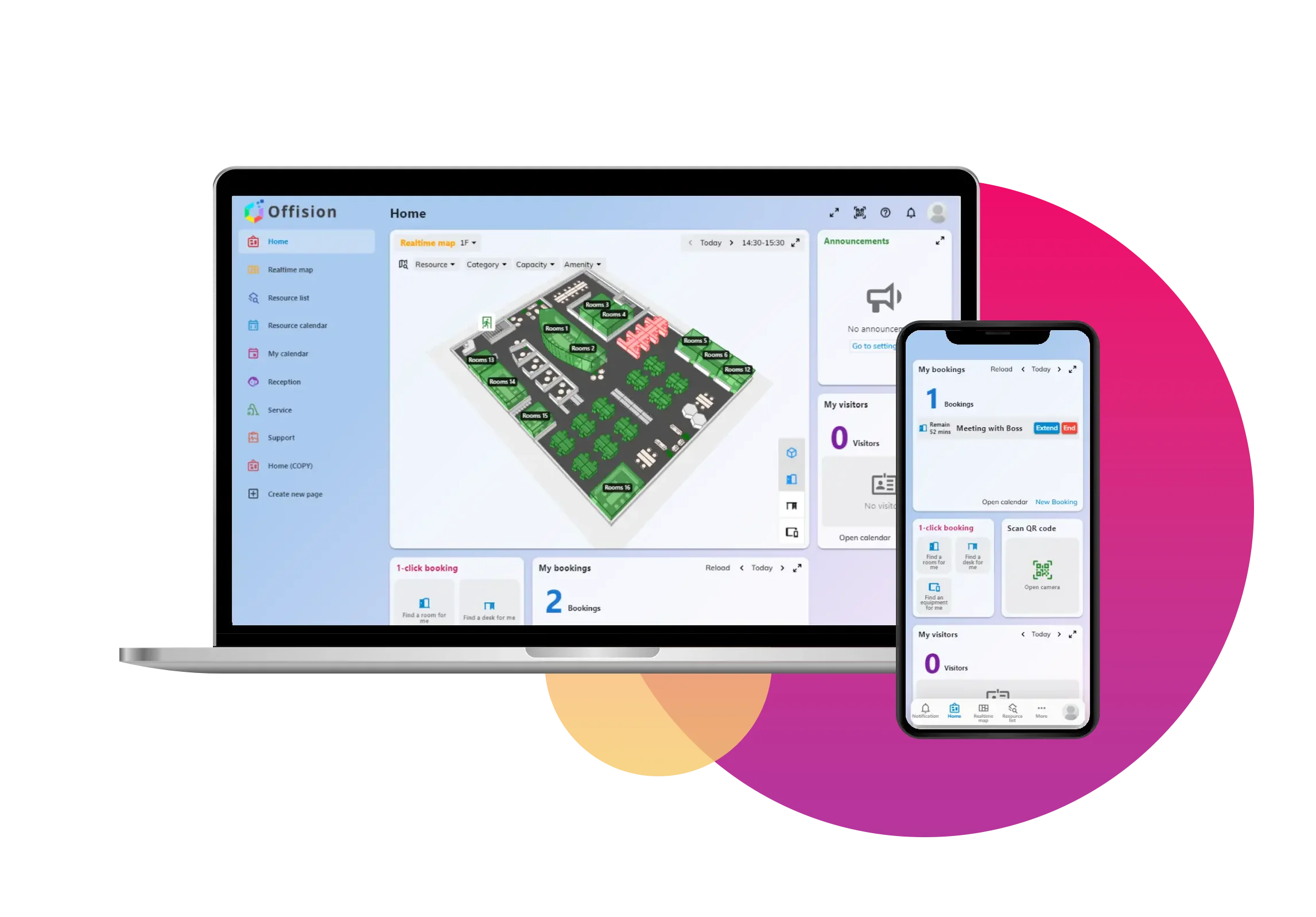
A masterpiece of simplicity, effortlessly orchestrates your smart office and resource scheduling needs.
Run Offision visitor check-in on Neat Frame at reception — greet guests, capture details, and send them to their host.
By connecting directly to your PC, the QL-820NWB via Wired or Wireless LAN enables you to print a visitor badge in one simple step. Support Windows / iOS / Android.
No. The three places that admit a visitor are the reception desk, a lobby screen or kiosk, and the visitor's own phone. A room booking panel cannot check a visitor in.
The visit has to name a room that is open to visitors, and that room needs a floor and a position on the floor plan. The You are here pin appears only when the kiosk itself has been placed on the plan. If any of that is missing, the guest gets a plain confirmation. The host is still told.
No. Visiting types, approval, and who gets notified are set once for the building. The kiosk offers what that setup produces. It greets visitors only after it has a location on the floor plan.
Launch workplace booking and operations without a long IT project—start fast, scale when you are ready.
Get started in minutes

©2026 ONES Software Ltd. All rights reserved.