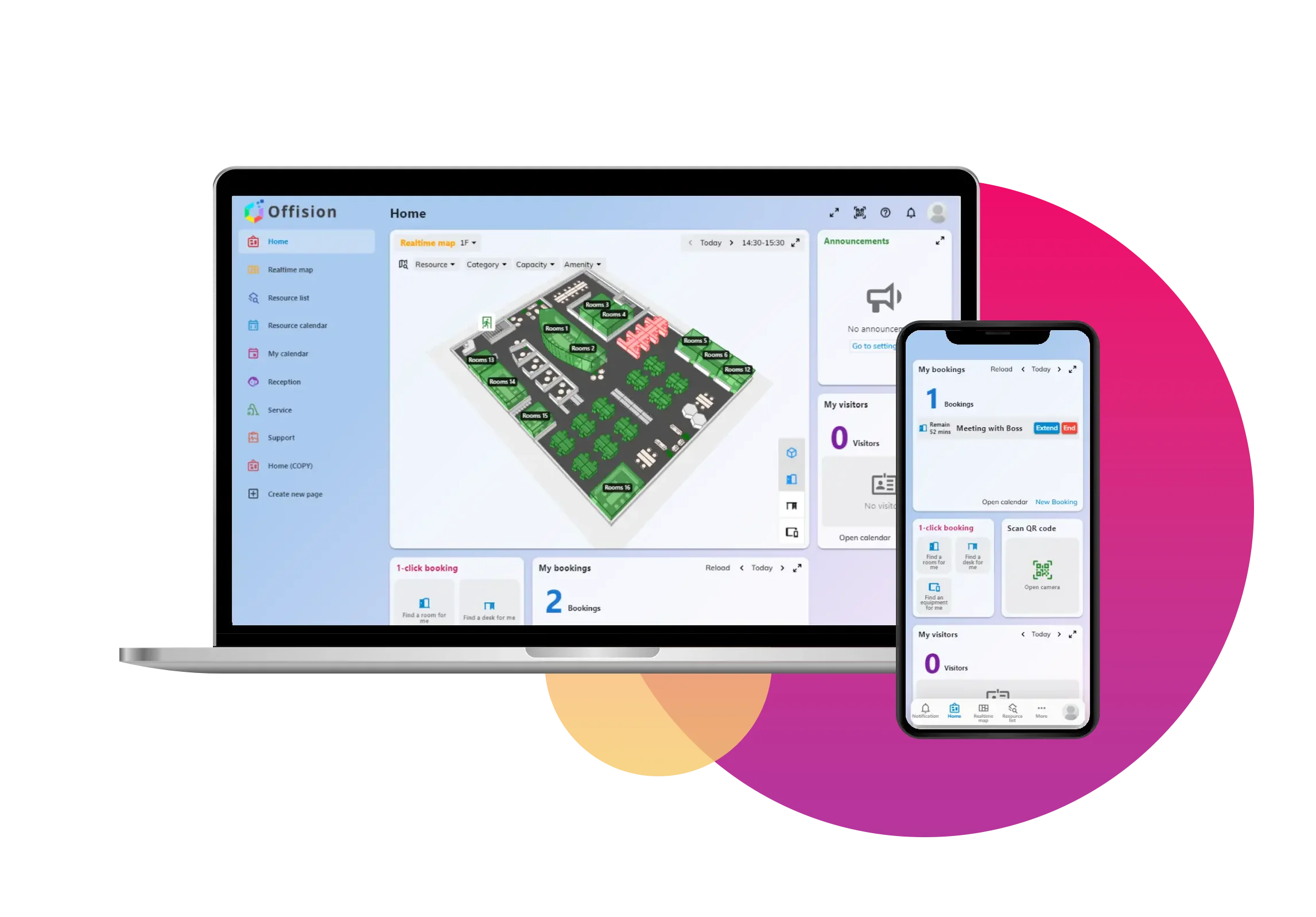
The Check-In Booking via Booking Panel feature in Offision is designed to simplify and optimize the booking process. It ensures that resources are used efficiently, prevents wastage, and makes managing bookings hassle-free for users. Here’s what the feature offers:
- Timely Check-Ins: Users can confirm their bookings directly through the Booking Panel, ensuring resources are actively utilized within the designated time.
- Automatic No-Show Marking: If users fail to check in within the set waiting period, the booking is flagged as a "no-show," allowing the system to identify unused resources.
- Resource Release: Unused resources are automatically released, making them available for other users to book, thus enhancing availability and flexibility.
- Improved Resource Efficiency: By allocating resources only to active users, the system minimizes wastage and ensures optimal utilization.
- User-Friendly Process: The check-in process is designed to be straightforward, making it easy for users to manage their bookings.
Access Requirements:
- Check-in can only be performed by the booking organizer, an invited attendee with an Offision account, or a delegate authorized to act on behalf of the user.
- If the “Allow Skip User Verification” option is enabled, anyone can check in without requiring user account verification, further simplifying the process when needed.
This feature is perfect for businesses and organizations that require efficient management of bookings, ensuring resources are used effectively while maintaining flexibility for users.
Pros:
Enhanced Resource Efficiency
- Prevents wastage by ensuring resources are only allocated to active users.
- Automatically detects no-shows, releasing unused resources for others.
Improved Availability
- Frees up resources promptly for other users, increasing overall system flexibility.
- Helps avoid bottlenecks caused by unused or idle bookings.
Streamlined User Experience
- Simplifies the process for booking organizers, attendees, and delegates.
- Offers a clear and user-friendly check-in interface through the Booking Panel.
Automation Benefits
- Saves time by automating no-show marking and resource release.
- Reduces the need for manual intervention in resource management.
Customizable Options
- Allows businesses to enable or disable user verification based on their operational needs.
- Flexibility to grant access only to authorized users or simplify the process for all users.
Minimized Errors and Oversights
- Ensures bookings are actively confirmed, reducing the likelihood of forgotten or missed reservations.
- Automates processes to reduce human errors in resource allocation.
Scalability for Various Use Cases
- Suitable for small teams or large organizations with extensive booking needs.
- Adapts to different scenarios, whether strict user verification or open check-ins are required.
By incorporating these benefits, Offision’s Check-In Booking feature ensures a seamless and efficient experience for both users and administrators, ultimately improving overall resource management and user satisfaction.